Product guide
How to Use My Asthma Life
Follow these visual guides to record information, manage medication entries, review what you logged, and prepare a report.
Task 1
Complete Your Daily Check-In
Use the daily check-in to save the core symptoms you can answer for a selected day, then add optional context when it is helpful.
-
1
Open Daily Check-In from Today
On Today, scroll to Logging and review, then choose Daily check-in. A saved day is labelled Review today’s Daily Asthma Check-In.
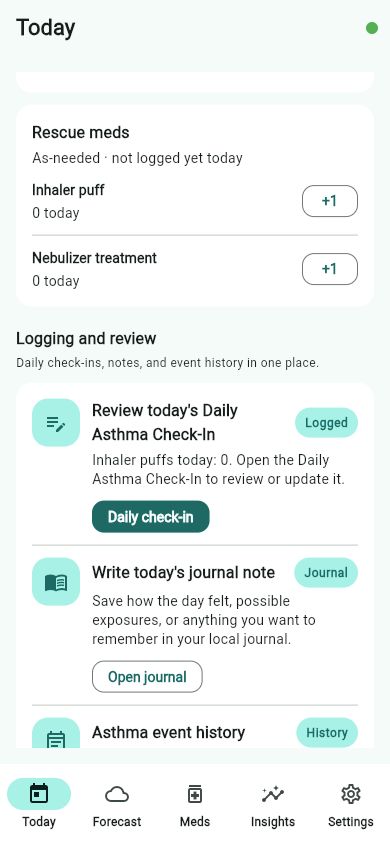
Start or review the selected day from Today. -
2
Review the required items, then save
Confirm the Check-in date, Controller adherence, and Required check-in items. Optional details can stay blank; after reviewing the rest of the form, select Save.
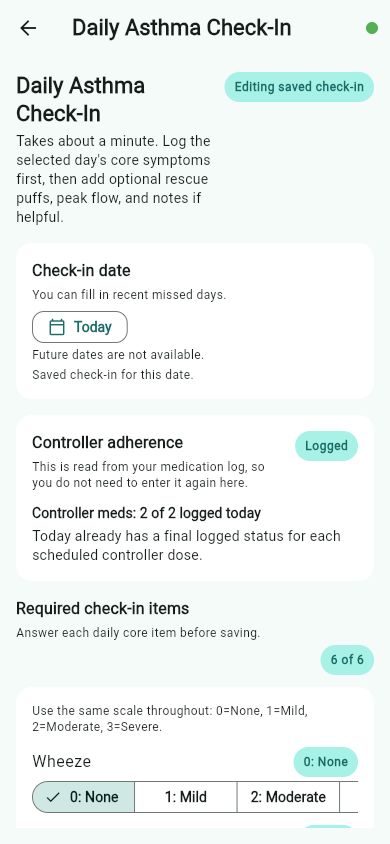
Required items are shown before the optional context fields and Save action.
Afterward: the selected day is saved and can be reviewed or updated from Today.
Task 2
Add Your Medications
Keep medication information you already have in one place. The guided flow records entries; it does not provide prescribing or treatment advice.
-
1
Open Meds and start an entry
Choose Meds in the app navigation, then select Add medication.
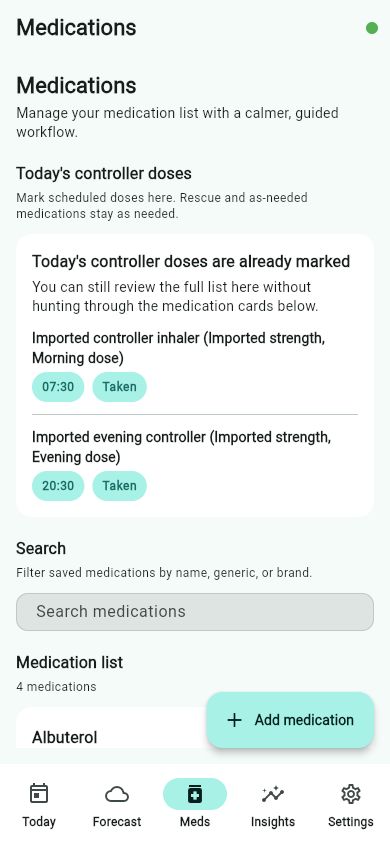
The Medication list keeps saved entries and Add medication together. -
2
Describe, schedule, and confirm
In Find medication, search or choose Custom medication, then enter information you already have. Use Continue through Schedule, review Confirm, and select Save medication.
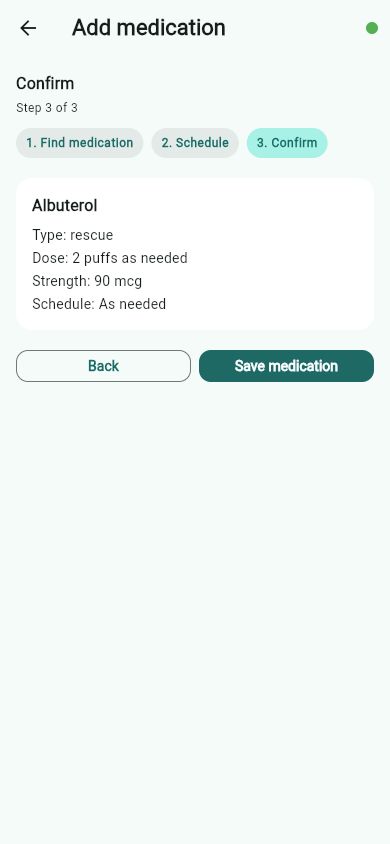
Review the completed entry before selecting Save medication.
Task 3
Review Your Insights
Insights summarize the information you recorded and explain their limitations. They do not diagnose conditions, confirm causes or triggers, or provide treatment advice.
-
1
Choose a review lens
Choose Insights, then select an available range under Review lens. The Standard view shows a logged-data summary, comparison, and limitation.
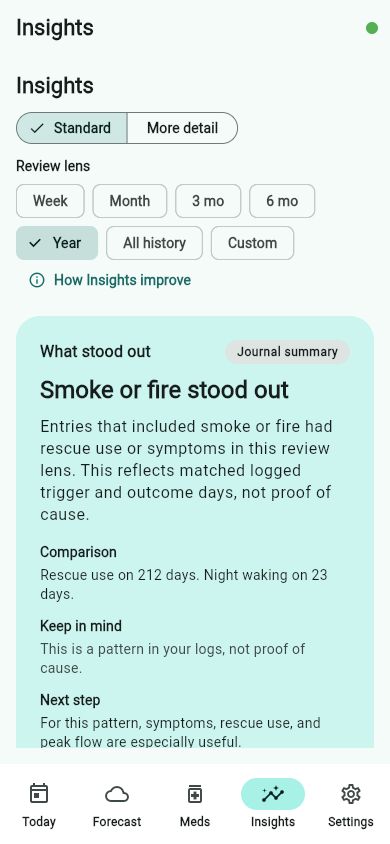
Read What stood out together with Comparison and Keep in mind. -
2
Open More detail for the supporting evidence
Select More detail to review the same result’s period and comparison. Insight wording describes logged patterns; it does not diagnose, prove a trigger, or establish cause.
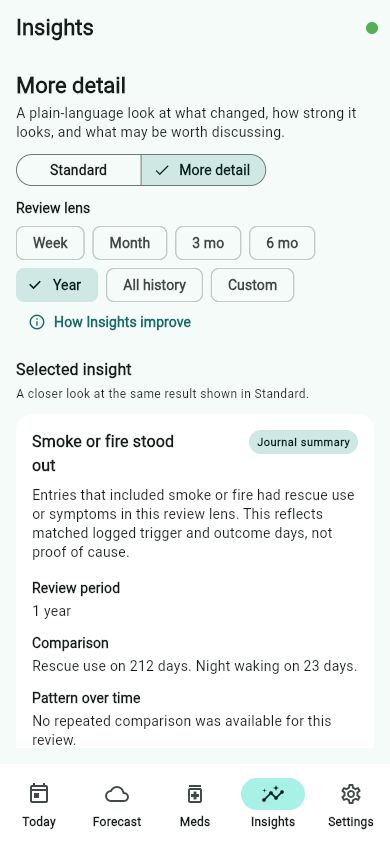
More detail keeps the result tied to logged comparisons and its limits.
Task 4
Create a Report
Reports organize saved information for review. Read the report and its data limitations before using it; it is not a medical record or a substitute for professional evaluation.
-
1
Open the report and choose a period
From the Standard Insight, select Open report. In Reports, use Summary period to select an available range; the on-screen report updates for that range.
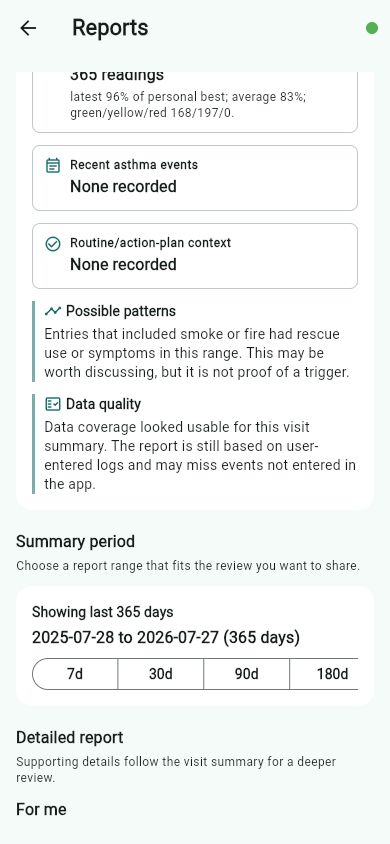
Choose the Summary period that fits the review you want to share. -
2
Read the visit summary and its limits
Start with Doctor visit summary and the Clinical handoff. Read the selected date range, logged-days count, and data-quality context before using the summary for a conversation; it is not a diagnosis or treatment recommendation.
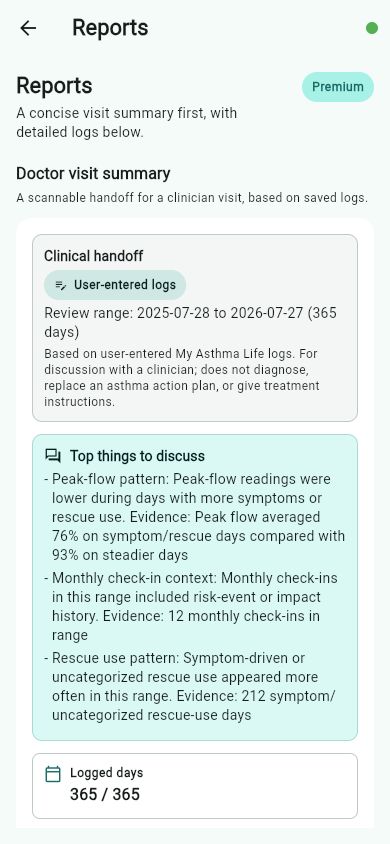
The report separates saved information, questions to discuss, and its limits.
Ready to use your own logs?
Open My Asthma Life to start or continue a check-in, medication entry, review, or report.
Open My Asthma Life